.png?width=210&height=44&name=Design%20ohne%20Titel%20(2).png)
How the Settings menu is structured
The Settings area on the left is grouped into sections. Some sections are always visible, others only appear if the related module is active on your account. The Owner, Admin or HR can customize their organisation based on their personal preferences.
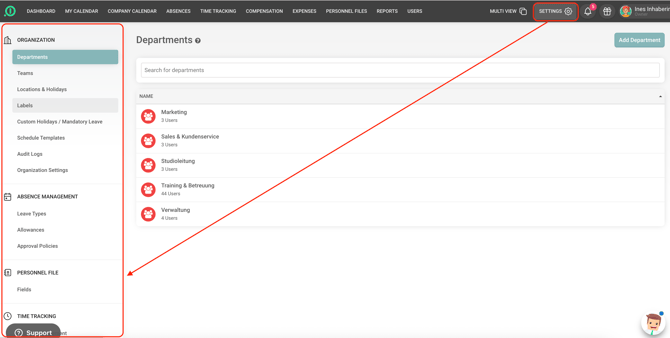
Always visible:
- Organization – company-wide structure and rules
- Departments – create and manage departments, assign users
- Teams – create and manage teams within or across departments
- Locations & Holidays – define office locations and their public holidays
- Labels – custom tags used to categorize absences or records
- Custom Holidays / Mandatory Leave – set company-specific closure days or mandatory leave periods
- Schedule Templates – define reusable working-time patterns
- Audit Logs – track changes made in the personnel file and other sections.
- Organization Settings – general company-wide configuration
- Absence Management – everything related to leave
- Leave Types – configure the categories of leave employees can request (vacation, sick leave, etc.)
- Allowances – set how many days/hours each leave type grants and how they accrue
- Approval Policies – Here you can set up your multi-step approval process.
- Account and Integrations – billing and connections
- Payment Details – manage billing information and download invoices.
- Subscription – view and manage the current plan/package
- Integrations – connect Microsoft 365, Google with calendar syn or Teams/Slack
- Account Settings – delete your account and also grant absence.io access to your account for support issues.
Only visible if the module is activated:
- Personnel File (appears only if the Personnel File module is active)
- Fields – define which custom fields appear on employee personnel files
- Time Tracking (appears only if the Time Tracking module is active)
- Access Management – control who can view or edit time entries
- Terminals – manage clock-in terminals
- Compliancy – configure rules for legally compliant time recording
- Settings – general time tracking configuration (r)
- Expense Management (appears only if the Expense Management module is active)
- Access Management – control who has access to Expenses.