.png?width=210&height=44&name=Design%20ohne%20Titel%20(2).png)
With Project Management, you can create clients and projects in absence.io and connect them to your time tracking. You can find it under Settings > Project Management. There you’ll find two sub-sections: Customers and Projects.
Project Management is only available with the Time Tracking module.
Step 1: Create Customers
Every project belongs to a client, so start by creating your clients. Go to Project Management > Customers. Here you can see all existing clients with their name and email address, and you can find them using the search. Click Create (top right) to add a new client.
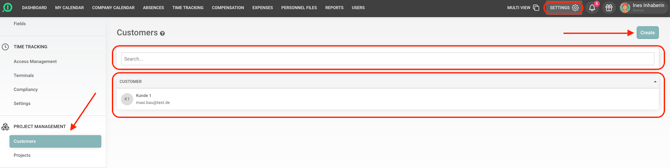
Here you can enter the following details:
- Status (required)
- External ID
- Contact person, Email and Phone
- Address, Address 2, City, Postal code and Country
- VAT ID
- Notes
Step 2: Create a project
Now switch to Project Management > Projects and click Create.
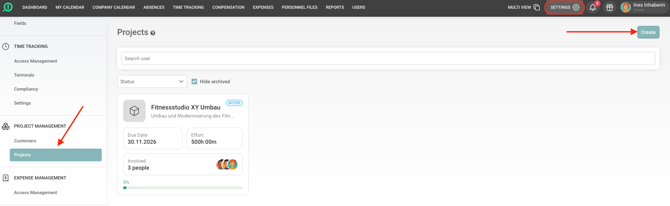
In the form, you’ll find these fields:
- Name (required)
- Archived: Use this to archive a project once it’s completed.
- Status (required)
- External ID and Description
- Manager: Select the person responsible.
- Client (required): Select one of the clients you’ve created.
- Hourly rate
- Effort: The planned effort in hh:mm format
- Start and End
- Labels: Select the labels used to book time on this project. You can also create new labels directly here if they don’t exist yet.
- Who will work on it? (required): Select the employees involved.
Click Save to create the project.
Step 3: Book time on the project
Your employees simply use the project’s labels in their time entries. The time is then automatically assigned to the right project. Only people assigned to the project can use its labels, and only as long as the project has the status Active. You can find out more about working with labels here.
Step 4: Keep track of your projects
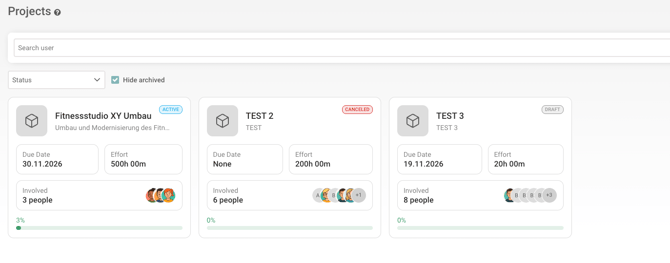
In the project overview, you’ll see all projects as cards. Each card shows you:
- the name and a short description
- the status (e.g. “Active”)
- the due date and the planned effort
- the employees involved
- the progress in percent
Use the search field and the Status filter to quickly find the project you’re looking for. Tick Hide archived to hide archived projects.
Enjoy our solution!
Your absence.io team