.png?width=210&height=44&name=Design%20ohne%20Titel%20(2).png)
When employees go on maternity or parental leave, these periods should be properly documented in the system – both as absence types and in the vacation Allowance and working time schedule. This ensures everything stays transparent and correctly recorded.
1️⃣ Absence Types for Maternity & Parental Leave
Go to Settings → Absence Types → Create absence type and add suitable types:
👉 Maternity leave or Parental leave (either combined or separately – both are possible)
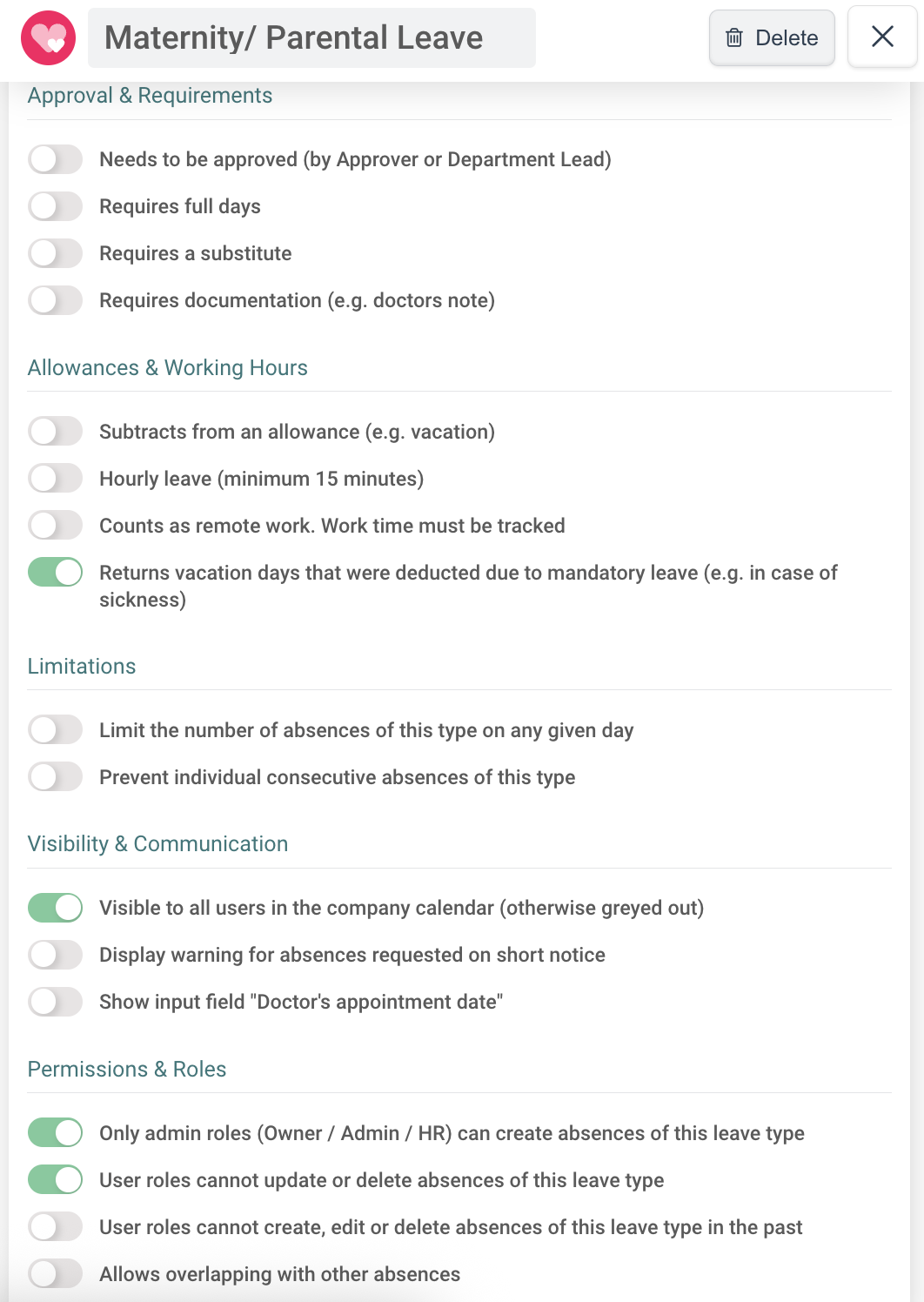
Recommended settings (toggles):
2️⃣ Vacation Allowance during Parental Leave
You have two options for managing vacation Allowance during parental leave:
Option 1: Continue the existing Allowance
Let the current vacation Allowance remain active while the person is on parental leave.
➡️ Once they return, create a new Allowance based on their updated working hours and assign it to them. If necessary, adjust the Allowance for the parental leave period manually under:
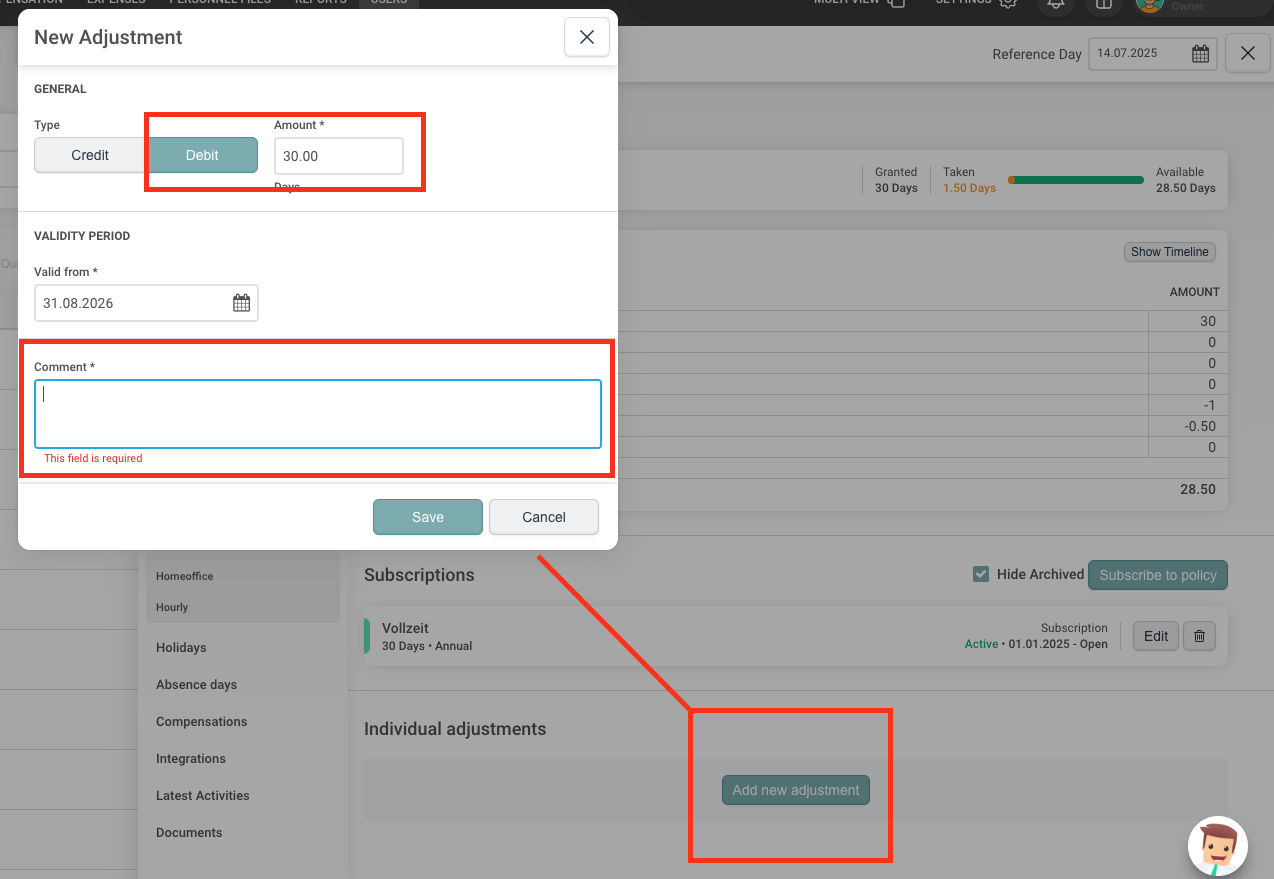
Profile → Allowance → Vacation → Individual Adjustments, depending on the actual Allowance during the leave.
Example:
If the employee is not entitled to vacation during the parental leave period, you can deduct the full amount (e.g. 30 days) once from the existing Allowance.
Option 2: New Allowance with 0 Days for the Parental Leave Period
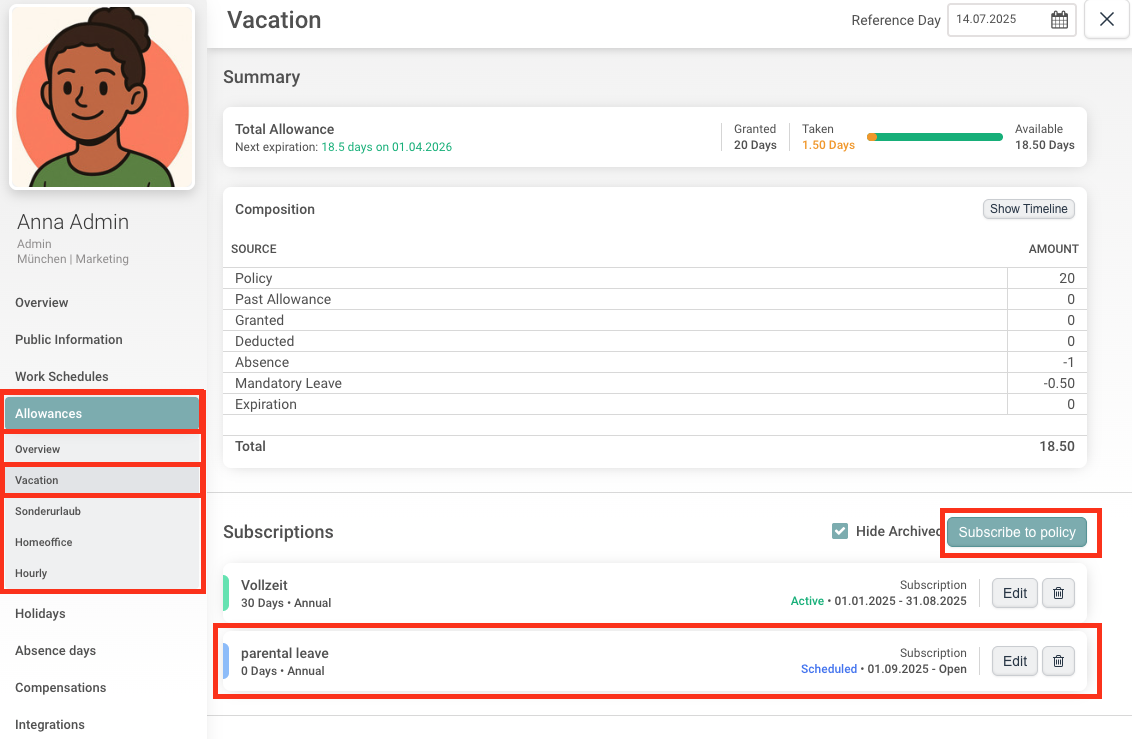
Create a separate vacation Allowance with 0 days for the duration of the parental leave and assign it to the person for that time period. You can do this under:
Global Settings → Allowances → Vacation.
You can assign the Allowance directly when creating it, or later via the user’s profile – both are possible (see screenshot).
➡️ Once the person returns from parental leave, create a new Allowance based on their updated working time model.
3️⃣ Work Schedule During Parental Leave
You also have two options for handling the work schedule:
Option 1: Keep the existing schedule
Let the current work schedule remain in place during the parental leave.
➡️ Once it’s clear how the person will return to work, you can create a new schedule with the updated hours.
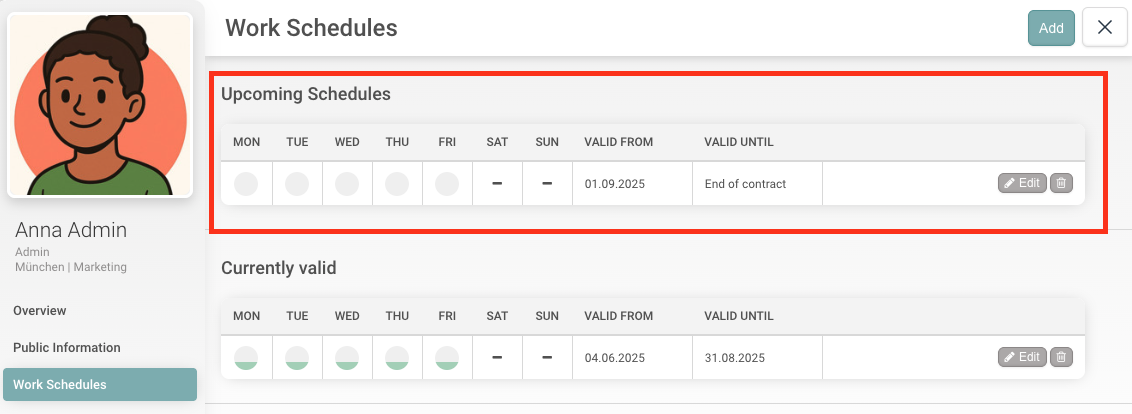
Option 2: Create a 0-hour schedule for the parental leave period
For clean documentation, you can create an individual work schedule with 0 hours for the duration of the parental leave. Technically, this is not required – it serves only for internal transparency and documentation.
➡️ Once the employee returns, simply assign a new schedule with the updated working times.
4️⃣ Set the User to “Inactive”
If you wish, you can set the affected person to “inactive” for the duration of their parental leave.
No worries – all existing data, entitlements, and settings will be retained.
Access is only temporarily restricted.
➡️ Once the person returns, you can reactivate their status at any time by switching them back to “active.”
✅ Summary
With the right absence types, Allowances, and working time settings, parental leave can be documented in absence.io clearly and accurately – from the start of the leave all the way to the return.
Enjoy using our solution!
Your absence.io Team