.png?width=210&height=44&name=Design%20ohne%20Titel%20(2).png)
If you're setting up your absence.io account partway through the year, one question comes up quickly: how do you best handle vacation days that have already passed this year? Before you get started, take a look at our article Set Up and Assign Allowances — it walks you through the basics of creating allowances and assigning them to your employees.
When switching to absence.io mid-year, you basically have two options:
1. You want to reflect the full year's history
If it's important for you to see the entire year's timeline in the calendar, here's how to proceed:
- Assign the employee the full allowance, e.g. 30 days, effective from January 1st of the current year.
- Then enter the vacation days already taken retroactively in the calendar — employees can do this themselves too.
- These days will automatically be deducted from the allowance, so the current balance ends up correct.
- If there's residual leave left over from the previous year, add it via individual adjustments, including a matching expiry date.
2. The history in the calendar isn't that important to you
If you'd rather skip entering individual vacation days retroactively, you have two options:
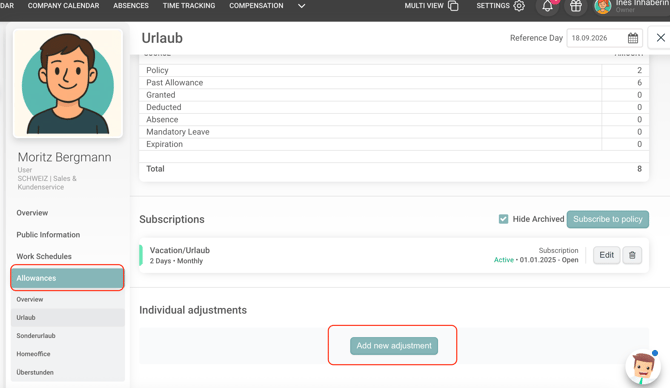
- Option A: Follow the same steps as in Option 1, but instead of deducting the days already used one by one in the calendar, deduct them all at once via an individual adjustment.
- Option B: Create an individual adjustment for the current year with the days remaining for the rest of the year. Then let the regular allowance rule start from the following year.
Residual leave from the previous year is always handled via individual adjustments in both options and stays unaffected.