.png?width=210&height=44&name=Design%20ohne%20Titel%20(2).png)
With the Payroll Data export, you get the most important data of an employee in one Excel report, for example for your payroll accounting.
This feature is currently in beta testing. If you are interested in testing it, please get in touch at support@absence.io.
Requirements
- You have the role HR, Owner or Admin.
- You have permission to access the Personnel File and the Reports. You can activate them in the profile under Public Information.
How it works
- Open the employee’s profile and go to the Overview page.
- Click Payroll Data.
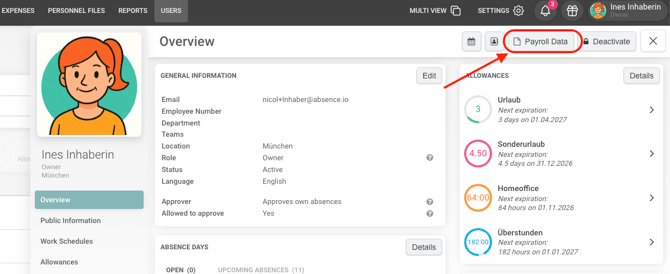
- Choose the period using Start and End.
- Under Leave Types, select the leave types that should be included in the export. You can select several and find them quickly via the search field.
- Click Download.
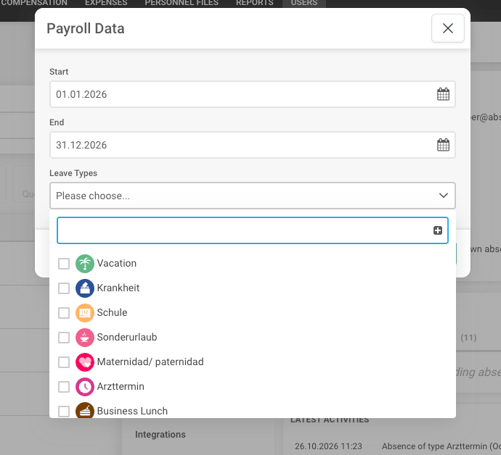
The export always contains the data of the person whose profile you are currently in.
What does the Excel report contain?
Besides the absences, the report also contains the following data, which you will only see in the Excel report, not in the interface:
- Remaining vacation days
- Total working hours
- Scheduled time
- Overtime
- Bonuses
- Benefits
- Salary
- Public holidays
Enjoy our solution!
Your absence.io Team