Do you want to ensure that vacation for part-time employees is recorded correctly? In absence.io, there are different ways to handle this – depending on how you want to manage it internally. Below, we show you the most common options with their advantages and disadvantages – plus important notes regarding half-day calculations and vacation entitlements.
🧱 How absence.io Calculates Vacation Days
absence.io always calculates vacation in full calendar days – regardless of how many hours are worked on that day.
Example:
A part-time employee works 5 days per week, 4 hours each day.
The system considers each of those days as a full working day – just like for a full-time employee.
⚠️ Important Notes on Calculation
Half Vacation Days:
Be careful if working hours end before 12:00 PM. absence.io uses 12:00 PM (noon) as the default threshold for half vacation days.
This means: If someone only works in the morning (e.g., 08:00–12:00), a half vacation day can technically cover all working hours (when the Time Tracking module is active), even though the employee effectively has the entire day off.
Vacation Allowances is not adjusted automatically:
If an employee’s working schedule changes (e.g., from 5 to 3 working days per week), absence.io does not automatically adjust the stored vacation allowance.
👉 In this case, you must create a new allowance rule with the adjusted allowance and assign it specifically to the affected employee.
✅ Option 1: Store Vacation like for Full-Time Employees
To ensure deductions “balance out” in the system, you can assign the part-time employee the same vacation Policy as a full-time employee (e.g., 24 instead of 12 days). This means:
One full day is deducted per vacation day
The vacation day corresponds to the actual working day (regardless of hours worked)
Advantage: Easier handling for employees and approvers
⚠️ Important when using the Time Tracking module:
If you choose this option, the part-time employee should always request full days – not half days. With a half vacation day (before 12:00 PM), the entire working time could theoretically be covered, although only 0.5 days are deducted.
Tip:
Activate the setting “Requires full days” in the vacation type settings.
This prevents employees from requesting half days.
If you only want this restriction for part-time employees, you can create a separate vacation type, e.g., “Vacation – Part-Time.”
There, activate the “Requires full days” option, while full-time employees can still request half days.
✅ Option 2: Reduced Vacation days (e.g., 12 Days)
Alternatively, you can proportionally reduce the vacation allowance of the part-time employee (e.g., 12 instead of 24 days). This means:
For example, to take one full week off, the part-time employee would need to submit 5 half-day requests.
✅ Advantages:
No risk of “overuse” due to half days
Transparent and proportionally adjusted entitlement
❌ Disadvantages:
More administrative effort for employees, as they must submit multiple requests per day for longer absences
⚠️ When using the Time Tracking module, working hours must end before 12:00 PM (see calculation notes above).
✅ Option 3: Store Vacation in Hours
If you want to manage vacation very precisely, you can create the vacation allowance directly in hours instead of days. This is especially suitable for part-time positions (e.g., 60%, 35%) or varying daily working hours.
Example:
If an employee has 30 vacation days per year and works 8 hours per day, this equals 240 hours of vacation per year. The employee can then request vacation in hours. To do this, you would need to activate an additional allowance in hours alongside the regular vacation allowance in days
(Settings → Absence Management → Allowances).
Important:
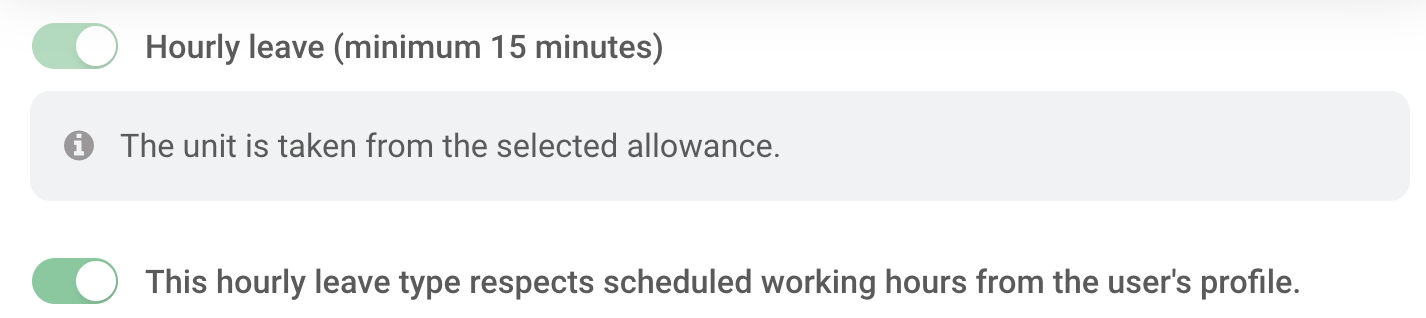
In the linked leave type, activate the setting “Consider planned working hours from the work schedule.”
You can find this under Global Settings → Absence Management → leave Types → “Name of your leave type.” This ensures that for multi-day absences, the system automatically considers the stored working hours from the employee’s work schedule.
Wishing you success with the setup!
Your Team from absence.io